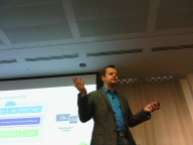
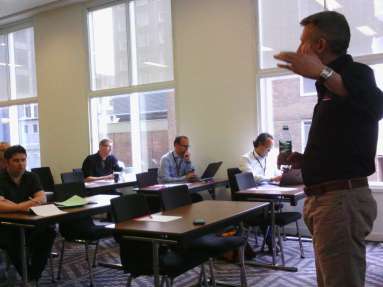
Today was the second and final day of BriForum London 2013, today for me was largely about the sessions as I had visited many of the vendors yesterday.

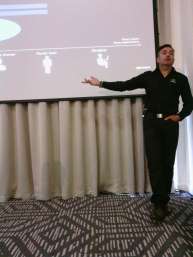
I attended a total of four sessions today kicking off with Hyper-V for VMware Administrators by Mike Nelson, whilst I’m quite happy with the features and functionality of Hyper-V 3.0, I was keen to know if my somewhat biased opinions when it comes to vSphere vs Hyper-V were indeed correct. I found the session really insightful and it was good to get engagement and different opinions from delegates as well as the presenter. Of course the outcome as expected is there is only one hypervisor worth looking at being VMware vSphere (I joke). It was good to hear about the different configuration maximums as well as the meaningful comparison between features and functionality and the considerations when deploying a Hyper-V solution. The general feeling seems to be Microsoft have done a good job with Hyper-V 3.0 but the pricing and packaging regarding the management tools can cause further cost considerations to be a barrier and still leave vSphere a cost effective solution.

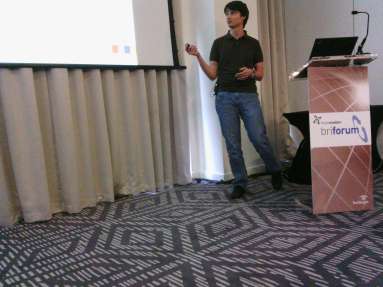
My next session was Brian and Gabes 5 x 15mins sessions covering many topics, a few of interest to me were are user installed applications really a requirement, all wifi users should be treated as external users and VDI vs RDS. This was a great session again with audience interaction but it was also great to see how Brian and Gabe work together, with Brian happy to make radical and sweeping statements and Gabe standing back and taking the considered approach, between them they are sometimes able to agree on the middle ground. Im not going to micro analyse this session but if you were at BriForum London and missed it check out the video or be sure to attend Chicago.

During the break I had a chance to catch-up with the few vendors I missed yesterday one stood out for me and that was Lakeside Software, I met these guys at VMworld last year and was pleased to learn that as of July 2012 they now have a UK based EMEA team which has grown significantly since I last saw them, prior to this it was ran purely from the US and this made engagement very difficult. Lakeside make desktop analysis and monitoring software. I have used many other solutions in this space and was pleased to see how Lakeside works in comparison, their UI looks slick and purposeful and I was particularly impressed by the dashboards, reporting and tools that not only help you get the information to plan your desktop refresh but also have tools that help you compute that information to make the final decisions. I’m looking forward to following this conversation up after the conference and seeing it working in my lab. Watch the blog as a blogpost is sure to follow.

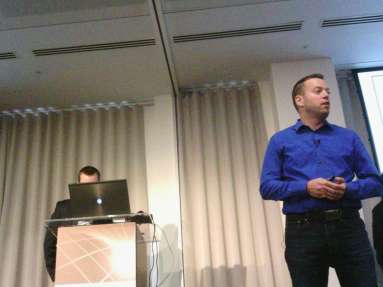
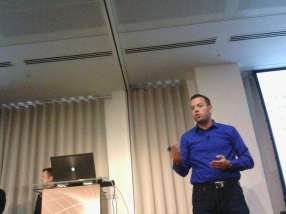
My final two sessions were by the guys from PQR and Login Consultants that run the Virtual Reality Check, if you are not aware of what these guys do, I strongly recommend you head over to their website http://www.virtualrealitycheck.com as ever their sessions were insightful and backed up heavily with their various findings. Watch out next week for some new white papers from them.

This was the end of BriForum finished off with a final word from Brian Madden, no announcement was made about next year but hopefully I will be able to attend again.

I have now been using my Surface for around 3 months, and I’m pleased to report I’m still loving it as a device. I wanted to post a short blog post specifically about my use case while traveling with it as a primary device during BriForum.

I had originally planned to get on with some work on the train to London but unfortunately my lack of access to my business documents and poor internet connection had meant I was unable to collect them via VMware View, this does highlight the importance on the availability of users data to be productive on mobile devices, as even though I had a device capable of editing and working on my documents I was let down by the fact they were only stored on a CIFs share rather than another more available platform or at least a method for receiving one document over a low bandwidth connection. There are of course a number of solutions to this such as a VPN, Sharepoint Server or something more modern like Horizon Data, AppSense Data Now etc.

During my day I was able to effectively use it for tweeting, emailing, connecting into View sessions to catch up with work where needed, taking notes, I was surprisingly also able to charge my iPhone twice without draining the surface and also download my photos via the USB cable to use in a blog post written in Word. So far I have no regrets only bringing my RT based device.

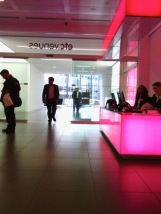
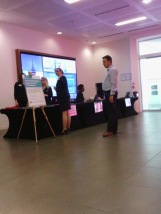
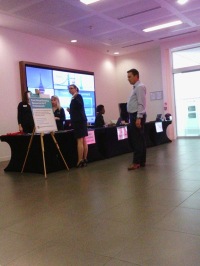
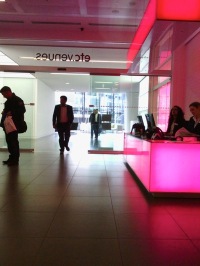
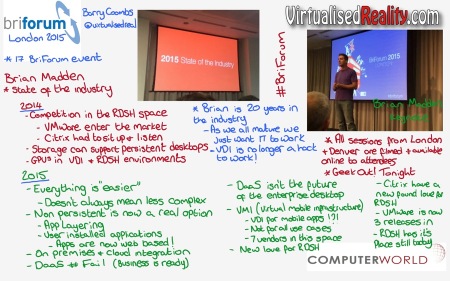
BriForum London kicked off yesterday taking place near St Paul’s Cathedral at the ETC Venues conference facility. Once I stopped trying to follow google maps to get there (Which was trying to take me somewhere about a mile away) I joined the registration queue and quickly headed into the opening keynote by Brian Madden. The first part of the keynote was a review of what was said last year during the keynote, with the end concentrating on the improvements that have happened since, that are starting to make VDI a more cost effective and viable solution from where we were in the past. These included hardware offloaded graphics processing and single instance block storage.

Brian was keen to push that VDI only works in persistent mode, as users want to customise their desktop and install their own apps as they always have done amongst other reasons. I don’t agree fully with this sentiment, whilst having a persistent desktop is certainly an easier option to get you VDI project off the ground we won’t be making full use of the benefits of a VDI solution and moving forward when we are looking to allow the user to become decoupled from one device (or desktop source) the movement of data, apps and customisations will be increasingly important. Admittedly if you are a power user and need to be installing your own applications that aren’t part of an enterprise app store like Horizon Workspace a persistent desktop maybe your best and only option unless you are going to look into solution like Liquidware Labs Flex Apps, but most task and knowledge workers in companies from my experience are not concerned by not being able to install applications (or potentially have ever been able too) or only being able to select from the enterprise catalogue. With the wide variety of persona management solutions around there is no reason why user customisations shouldn’t be persistent between non persistent desktops. By having a non-persistent desktop configured correctly with persona management and application layering technologies we are able to refresh the base image for security and consistency on a regular basis without issue and the desktop itself becomes worthless meaning there is no requirement to back it up, unlike a persistent desktop which presumably is persistent because it has some worth to an individual or the business.

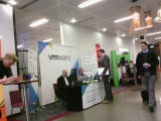
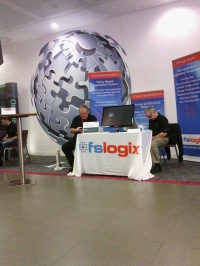
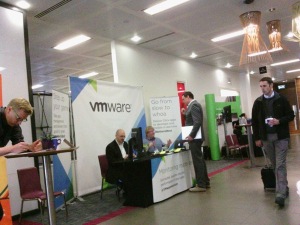
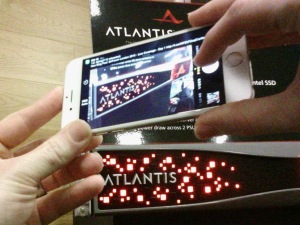
After the keynote we were given the opportunity to engage with the vendors attending the conference, I was very disappointed to not see VMware and Citrix attending this year, this event is a great showcase for these companies especially when there is so much focus on end user computing from VMware at the moment. I really enjoyed chatting with a number of vendor’s especially, AppSense regarding their DataNow and MobileNow products, Atlantis ILIO, nVidia with their GRID GPUs, Nutanix with their block based compute and storage platform and Xangati with their Virtualisation monitoring product. The vendor hall in my opinion could be 2 or 3 times the size for this event, what better opportunity is there for End User Computing focused vendors to have a dedicated audience of End User Computing professionals to talk too and wow with their wares, where are the likes of Dell Wyse, DevonIT, Liquidware Labs amongst others?

A key part of any BriForum is the breakout sessions, where industry experts share their knowledge, in the morning I joined Jack Madden’s session regarding Enterprise Device Management (EDM) this is a relatively new subject area for me so I was pleased to learn more as Jack walked us through his new book that will be out shortly. My next sessions was AppSense’s Bring Your Own Dad (Device, Application, Data) session. I was keen to attend AppSense’s session after enjoying theirs so much last year, they seem to know how to engage the audience and mix knowledge with live demonstrations, a lot of vendors need to learn from these guys, as when talking to a technical audience the sales pitch won’t cut it. My remaining technical sessions of the day were regarding RDS 2012 and Storage improvements in vSphere 5.1 which I really enjoyed and I am hoping to catch up with presenter Jim Moyle today to discuss further how Atlantis ILIO assists in VDI solution as Jim works for Atlantis. I also attended the vendor session by Nutantix and Streamcore, I’m not sure what went wrong in this session as it appeared to finish 45 minutes early and I would have loved to have seen a live demo by Rob Tribe during the Nutanix presentation as his passion for the product and technology always comes across really well. The StreamCore presentation was just that “a number of slides” and unfortunately wasn’t very engaging.

Overall I had a good first day and even managed to pop into the new Giant bike shop downstairs during a break, I know Brian is a cycling fan (after discussing over beers at the last BriForum) and would recommend he pops down! Today I will be looking forward to attending Ruben Sprujit’s from PQR’s sessions as they were amongst my favourites last year.

VMware View ships with a number of group policy templates, these can continently be found on your View servers at the location shown in the image below.

image

I’m not going to teach you all how to suck eggs here but you will obviously want to create a group policy to deploy these templates against your View Desktops or Clients depending on which template it is you are deploying, you will do this as usual through Group Policy management and creating a GPO.

Once you are inside the Group Policy Management Editor you are able to expand Computer Configuration, Policies, Administrative Templates then Select Add / Remove Templates

image

You can then browse to the admin templates and add them to your GPO.

image

Once imported you will see the policies listed under Classic Administrative Templates (ADM)

image

From the user guide the breakdown of the adm files is as follows.

Template Name Template File Description
VMware View Agent Configuration

vdm_agent.adm

Contains policy settings related to the authentication and environmental components of View Agent.

VMware View Client Configuration vdm_client.adm

Contains policy settings related to View Client configuration.

Clients that connect from outside the View Connection Server host domain are not affected by policies applied to View Client.

VMware View Server Configuration vdm_server.adm Contains policy settings related to View Connection Server.
VMware View Common Configuration

vdm_common.adm

Contains policy settings that are common to all View components.

VMware View PCoIP Session Variables

pcoip.adm

Contains policy settings related to the PCoIP display protocol.

VMware View Persona Management Configuration

ViewPM.adm

Contains policy settings related to View Persona Management

Also don’t forgot when configuring these templates you will need to enable loopback processing. This is configured under

Computer Configuration > Policies > Administrative Templates > System > Group Policy.

image

I hope to put some articles up delving a little deeper in the configuration of these group policies in the future.

I recently came across an issue having previously deleted an application from Horizon Workspace, the application had disappeared from the list of available ThinApps but upon looking on the connector where you configure the ThinApp share sync the application was still appearing. I then subsequently tried re-adding the application and it didn’t re-add. A quick look at the user guide shows I had missed a manual step when deleting ThinApps. I’m not sure why this step is manual or indeed has to be conducted from the CLI but hopefully we will see this change in the future.

From Page 61 of the User Guide

1. Delete the ThinApp package subfolder from the Windows application network file share.

2. Delete the application from Horizon Workspace.

a. Using a browser, log in to the Horizon Workspace Administrator Web interface.

b. Click Catalog > ThinApp Packages

c. Click the icon of the ThinApp package you want to delete.

d. Click Delete, read the message, and if you agree click Yes

3. Use the Connector virtual appliance interface to issue commands to remove the ThinApp database.

a. Select Login and Log in to the underlying Linux operating system of the Connector virtual appliance.

b. Issue the following command to stop the ThinApp service:

/opt/likewise/bin/lwsm stop thinapprepo

c. Issue the following command to delete the ThinApp database:

rm /var/lib/vmware/tam/repo/repodb

d. Issue the following command to restart the ThinApp service:

/opt/likewise/bin/lwsm start thinapprepo

4. Exit the Connector virtual appliance interface

The most complex thing about Horizon Workspace is remembering all the administration URLs. I hope in future version we will see a bit more of a combined admin interface between components. In the mean time here is a list with all the admin URLs taken from the user guide.

https://HorizonWorkspaceFQDN/admin

Administrator Web interface (Active Directory user)

Manage the Catalog, users and groups, entitlements, reports, etc. (Login as Active Directory user with administrator role.)

https://HorizonWorkspaceFQDN/SAAS/login/0

Administrator Web interface (non-Active Directory user)

Use this URL if you cannot login as the Active Directory user with the administrator role. (Log in as an administrator using the username admin and the password you set during configuration.)

https://HorizonWorkspaceFQDN/web

Web Client (end user)

Manage files, launch applications, or launch View pools. (Login as an Active Directory user or virtual user.)

https://ConnectorHostname/hc/admin/

Connector Web interface

Configure additional ThinApp settings, View pool settings, check directory sync status, or alerts. (Log in as an administrator using the password you set during configuration.)

https://ConfiguratorHostname/cfg

Configurator Web interface

See system information, check modules, set license key, or set admin password. (Log in as an administrator using the password you set during configuration.)

First of all we are going to start by creating our ThinApp package, I’m not going to document the finer details of creating ThinApp packages here but the steps below will allow you to create a basic ThinApp for us to use with Horizon Workspace.

We are starting with a basic ThinApp installation, I recommend having two VMs one with ThinApp installed and the installation directory shared and a second with the base Win 7 or XP installed.

Run Setup Capture.exe and complete the PreScan process

Once you have completed the prescan you are in a position to be able to install and configure your application. For the purpose of this blog post I am using the installed version of Putty.

Once your application is installed and configured you are in a position to run your Postscan.

The Postscan and compare will complete and you will be asked to select the entry points for your application.

We are now able to tell the ThinApp that we will be managing the Application with Horizon. This will negate the need for us to set our permissions for the application as Horizon will manage this element for us.

We will now run through the rest of the ThinApp process, I haven’t documented this here but I have chosen all the default options. Once the application has compiled I will edit the package.ini to set the Application to stream rather than be downloaded. We are also able to edit the Horizon URL here if needed.

We will now build the ThinApp.

Once finished we will see our exe and MSI in the bin folder, if we try and run the application on this machine we will see that it is unable to be ran as the Horizon agent hasn’t been installed on our build machine.

We will now copy the two files within the bin folder to our ThinApp share, please note these need to be placed into a folder named after the application for Horizon Workspace to pick it up correctly, if it is placed in the root of the folder it will not be picked up.

We are now going connect to the Horizon Configurator and ensure the ThinApp module is enabled.

As we can see above the ThinApp Package module is enabled and we are going to follow the Connector hyperlink to configure it.

Once at the connector management page, we select the ThinApp Packages section on the bottom left, edit in the middle of the screen and then configure the location of our ThinApp packages. As you can see above I am saving my ThinApps on a share on my domain controller, this obviously isn’t recommended in a production environment. You can also set how often Horizon should sync with this share to check for new packages.

As you can see above we are able to manually sync using the button in the top left and when the sync completes we are then able to see the new application appear.

We are now going to move over to the workspace admin page to entitle the users or groups to use the new application.

Once logged into the workspace admin page, we are going to select Catalog and select the application that we have just added.

As you can see above we have selected the add group entitlement button in the top right, we are then able to choose the group we wish to entitle the application for and finally choose whether the application is automatically installed on the user’s desktop or alternatively whether the user is able to choose to install the application. We have chosen to automatically install the application.

If we connect to one of our desktops with the Horizon Agent installed, with an entitled user connected we will see the application will automatically appear, you may also see very faintly that we received a notification telling us the application was now available.

Similarly if we remove access to the application it will disappear and we will get a further notification.

Finally if we had chosen User Activated the user is able to install the application to their desktop by using the Horizon web interface.

By selecting the Add button above the application is installed to the machine.

Conclusion

Whilst this functionality has been around for a while now with Horizon application manager it is nice to see this now packaged with the rest of the Horizon Workspace functionality and even the Horizon Suite. Whether you are using VMware View or not this is surely the must have way to be managing your application deployment to your desktops.